A silent gateway failure in WooCommerce happens when the store looks completely normal but customers can’t finish paying by card. Most of the time the cause isn’t a server outage: it’s a webhook blocked by a firewall (HTTP 403), a signing key that no longer matches between Stripe (or Redsys) and the plugin, or test mode switched on by mistake after an update.
The most expensive problem for any online business is the one you don’t hear about. If your server goes down completely, an uptime alert reaches you in minutes. But if the checkout quietly rejects payments, visitors keep browsing, add products to the cart, and when they try to pay they hit a generic error or an endless spinner.
In this article we look at how the WooCommerce payment flow works, the exact reasons Stripe and Redsys fail, and a step-by-step way to diagnose and fix them.
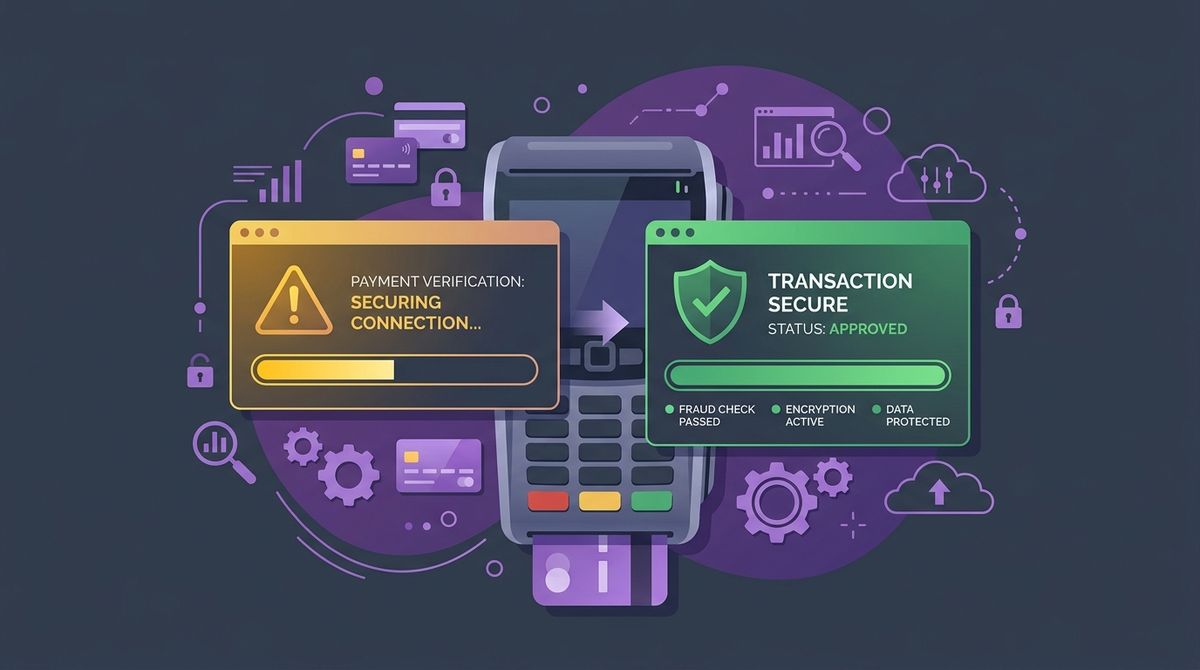
Why payment failures are “silent”
Three independent parties take part in a modern e-commerce transaction:
- The customer’s browser, running the JavaScript payment form.
- The payment gateway’s server (Stripe, or a bank through Redsys in Spain).
- Your web server with WordPress and WooCommerce.
When a customer clicks “Place order”, the bank usually authorises the charge on their card straight away. But for WooCommerce to mark the order as “Processing” and reduce stock, the gateway has to send an asynchronous notification in the background (a webhook or IPN call) to a URL on your store.

If that second call fails, things come apart:
- The customer sees the charge in their banking app.
- Your store never gets the confirmation.
- The order gets stuck in “Pending payment”.
- After WooCommerce’s hold time (usually 60 minutes), the order is cancelled and the product goes back into stock.
The result is a frustrated customer asking what happened, and a real sale turned into a support ticket.
The 4 most common technical causes with Stripe and Redsys
In our experience, the vast majority of gateway failures come down to four misconfigurations:
1. Mismatched webhook secret in Stripe (whsec_...)
When you set up the official Stripe plugin in WooCommerce, you get public and secret keys (pk_live_... and sk_live_...). But many admins forget the webhook signing secret.
If you regenerate keys in Stripe or move between environments without updating that secret in WooCommerce, the plugin rejects every incoming notification with a signature error:
Stripe Webhook Error: Signature verification failed. Check your webhook secret.2. Signature errors and test mode in Redsys
With Redsys (the Spanish banks’ payment network), failures usually come from two things:
- Error SIS0042 or SIS0019: the merchant secret key (SHA-256) in the Redsys plugin doesn’t exactly match the one in the virtual POS admin module.
- Test environment left on in production: after a change or an update, the “Test mode” box stays ticked, sending real transactions to the test server (
sis-t.sermepa.es) instead of the live one (sis.sermepa.es).
3. Firewalls and security plugins blocking POST requests
Plugins like Wordfence or Solid Security, or WAF rules in Cloudflare, often treat incoming calls from payment servers as automated attacks. When they answer HTTP 403 Forbidden, the gateway’s webhook can’t deliver the confirmation.
These addresses should always be allowed through your firewall:
- Stripe:
https://mystore.com/?wc-api=wc_stripe - Redsys:
https://mystore.com/?wc-api=WC_Gateway_Redsys
4. WordPress cron not running (wp-cron.php)
WooCommerce uses scheduled tasks to check order status and pending confirmations. If your site gets very little traffic, or WordPress’s virtual cron is disabled in wp-config.php without a real cron to replace it, orders don’t change status in time.
Step-by-step diagnosis
If you suspect your store isn’t charging orders properly, check by hand:
Step 1: Check WooCommerce’s logs
In WordPress, go to WooCommerce > Status > Logs.
In the drop-down at the top right, look for files starting with:
woocommerce-gateway-stripe-...redsys-...fatal-errors-...
Click “View” and look for lines containing CRITICAL, 401 Unauthorized or Webhook failed. If you find repeated errors around the hours your sales dropped, you’ve found the broken piece.
Step 2: Check the events in Stripe’s dashboard
- Sign in to Stripe (
dashboard.stripe.com). - Go to Developers > Webhooks.
- Click the endpoint set up for your WooCommerce store.
- Look at the responses: every event (
payment_intent.succeeded,charge.succeeded) should return 200 OK. If you see 403, 500 or Timeout, click the event to see what your server answered.
Step 3: A snippet that emails you about failed orders
You can add a temporary snippet to your child theme’s functions.php, or with a code snippets plugin, to get an email every time an order fails:
add_action('woocommerce_order_status_failed', 'radar_alert_failed_payment', 10, 2);
function radar_alert_failed_payment($order_id, $order) {
    $to = get_option('admin_email');
    $subject = sprintf('ALERT: Order #%d failed at checkout', $order_id);
    $message = sprintf(
        "A payment failed on order #%d.
Amount: %s
Gateway: %s
Customer: %s",
        $order_id,
        $order->get_total(),
        $order->get_payment_method_title(),
        $order->get_billing_email()
    );
    wp_mail($to, $subject, $message);
}
How Melopo Radar detects it
You can’t check Stripe or WooCommerce’s logs every fifteen minutes. Melopo Radar watches your gateway all the time:
- Payment checks: it makes sure active gateways aren’t in test mode in production, checks that webhook endpoints are reachable from outside, and detects expired SSL certificates or broken intermediate chains.
- Order checks: it watches checkout conversion. If your store keeps getting traffic but orders stay stuck in “Pending” instead of moving to “Processing” for an unusual time, it alerts you right away with the money at risk.
- Monthly health report: it records every payment anomaly, so you can hold your hosting or payment provider to account.
To keep your store healthy on every front, read also our guide to exposed backups in the WordPress root or learn how to fix indexing problems and 404 errors.