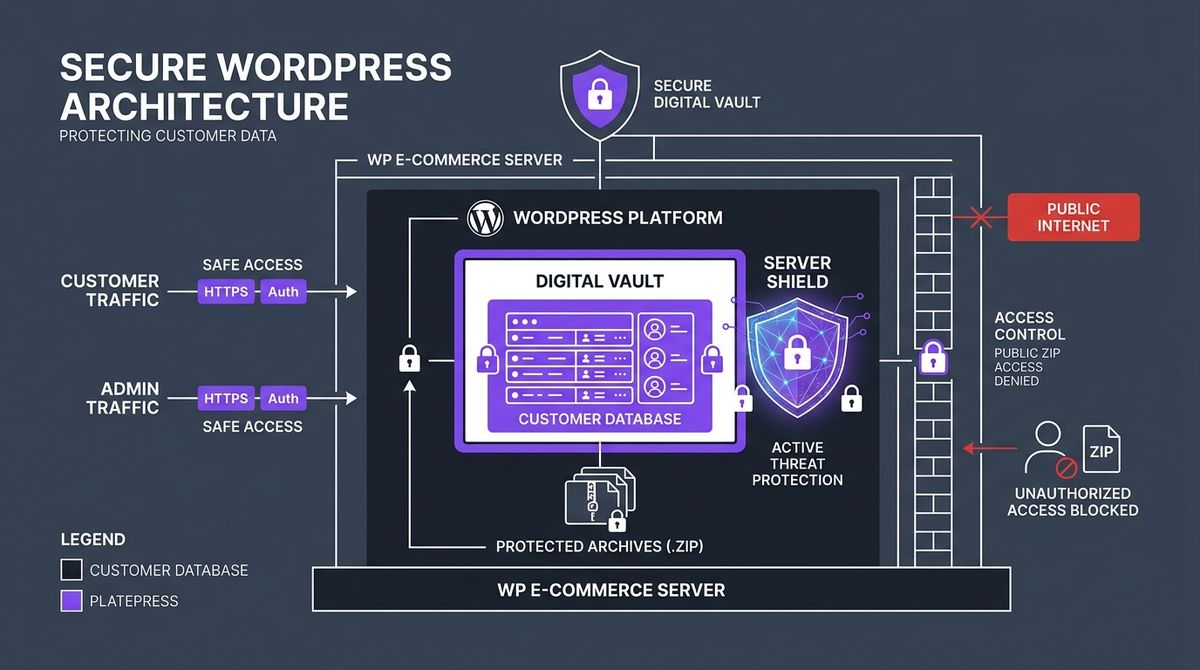
Exposed backups in WooCommerce happen when backup plugins or admins create archives (.zip, .tar.gz) or database dumps (.sql) directly in the server’s public folder (public_html or wp-content/uploads/) without restricting web access. Anyone, or any bot, that knows or guesses the path can download the file without a password, and with it the names, addresses, order history and password hashes of every customer in the store.
It’s one of the most serious and most common security failures we see in WordPress stores. Most owners invest in SSL certificates and strong passwords, but forget basic hygiene on the server itself.
Below we explain how these mass data grabs work, what they mean under the GDPR, and the exact steps to lock down an Apache or Nginx server.
How attackers find backups
Attackers don’t need to brute-force your admin panel to steal your data: they use automated crawlers that hit thousands of stores every hour, trying common paths and file names.
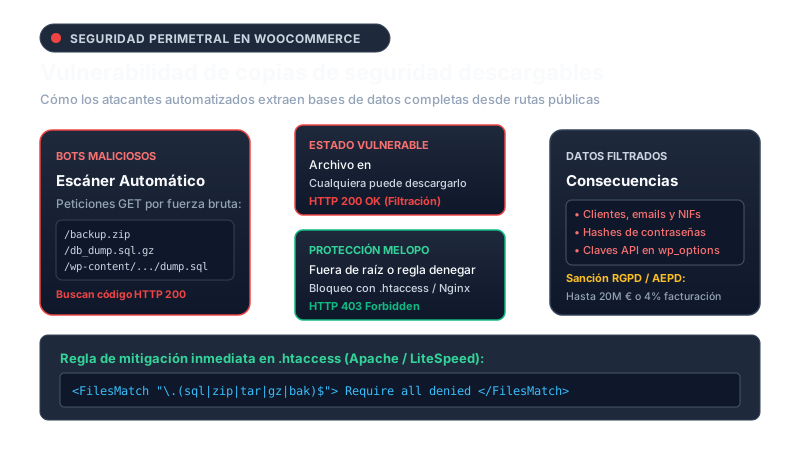
The bots try predictable combinations based on your domain and the date:
https://mystore.com/backup.ziphttps://mystore.com/backup.sqlhttps://mystore.com/mystore_2026.tar.gzhttps://mystore.com/wp-content/uploads/backup.sqlhttps://mystore.com/dump.sql.gz
If your web server answers HTTP 200 OK, the bot starts downloading at full speed. In a couple of minutes the attacker has an exact copy of your whole database.
What a downloaded .sql file contains
A WooCommerce database exposed on the internet reveals everything about your business:
- Customers’ personal data (
wp_users,wp_usermetaand order addresses): full names, phone numbers, shipping and billing addresses, tax IDs and email addresses. - WordPress password hashes: passwords are hashed (phpass or bcrypt), but common passwords from customers or staff can be cracked in hours with dictionary attacks on dedicated GPUs.
- API keys and gateway credentials (
wp_options): Stripe tokens, gateway keys, transactional email credentials or inventory sync keys often sit in plain text in the options table. - Revenue and business metrics (
wp_wc_order_product_lookup): daily sales, margins and supplier lists.
Legal responsibility under the GDPR
Under the EU General Data Protection Regulation (GDPR), unauthorised exposure of customer data is a personal data breach.
Companies must notify the supervisory authority within 72 hours and tell each affected customer if there’s a risk to their rights. Fines for failing to apply basic security measures can reach €20 million or 4% of annual turnover. Other countries have similar rules.
How to find and remove exposed files
If you manage your own hosting or VPS over SSH, or through cPanel/Plesk, run this audit straight away.
1. Search over SSH
Connect to your server and go to your site’s root folder (for example /var/www/html/ or public_html/). Run this find command:
find . -maxdepth 3 -type f \( -name "*.zip" -o -name "*.sql" -o -name "*.tar.gz" -o -name "*.tgz" -o -name "*.bak" \) -lsIf it lists files created by migration plugins or old backups, move them out of the public tree at once, or delete them if you no longer need them.
2. Block them on Apache and LiteSpeed
On Apache or LiteSpeed you can stop any sensitive file from being served over HTTP. Add this block at the top of your .htaccess:
# Block backup and dump extensions completely
<FilesMatch "\.(sql|zip|tar|gz|tgz|bak|config|env)$">
    Require all denied
</FilesMatch>

# Protect WordPress's sensitive configuration file
<Files "wp-config.php">
    Require all denied
</Files>
With this rule, even if a bot asks for mystore.com/backup.zip, the server answers HTTP 403 Forbidden and closes the connection without sending a single byte.
3. Nginx configuration
On Nginx, add this directive to your site’s main configuration block (/etc/nginx/sites-available/mystore):
location ~* \.(sql|zip|tar|gz|tgz|bak|log)$ {
    deny all;
    return 404;
}
By returning 404 instead of 403, the attacker can’t even confirm whether the file exists.
Where backups should live
The golden rule is simple: never store backups in the folder the internet can reach (the DocumentRoot).
- On the same server: keep them in a folder above the web root, for example
/home/user/private_backups/, which the web server (www-dataornginx) can’t serve. - Encrypted off-site storage: scheduled backups should go straight to secure cloud storage with encryption at rest (Amazon S3, Google Cloud Storage or Backblaze B2) and be removed from the server once uploaded.
How Melopo Radar detects it
You don’t need to be a sysadmin to know whether your store is exposed. The Security Pro add-on of Melopo Radar watches your store from outside, just like an attacker would:
- Downloadable backups: it checks the usual backup and dump paths without being invasive, and warns you straight away if any file answers 200 OK.
- Security headers: it checks that your server sends the recommended headers (Strict-Transport-Security, X-Frame-Options, X-Content-Type-Options) against injection and clickjacking.
- New administrators: it detects when a new admin user is created in your store without you knowing.
To keep your store safe and your revenue flowing, read also our guide on silent payment failures with Stripe and Redsys or how to avoid 404 errors and noindex products in WooCommerce.