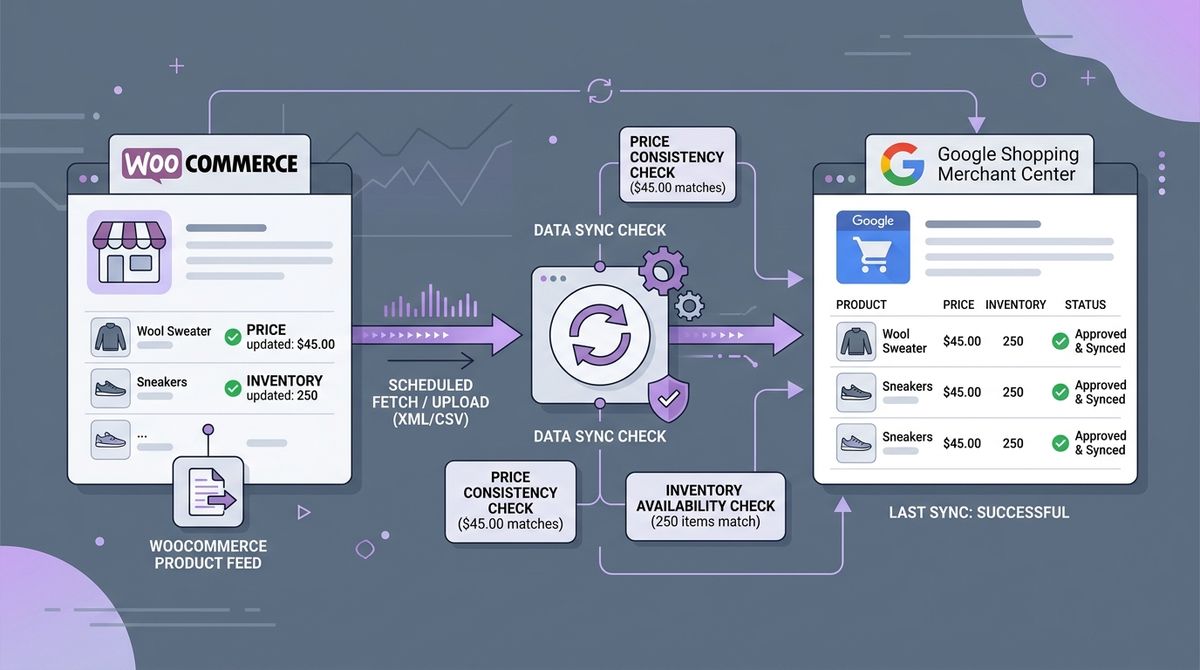
Google Merchant Center disapproves products for “Mismatched price” or “Mismatched availability” when Google’s crawler visits your WooCommerce product page and finds a different price or stock status from the one in your feed. In most cases the root cause is page caching (which serves old data to Google’s crawler) or outdated or badly formatted JSON-LD structured data (Schema.org/Product).
Disapproved products in Google Shopping are one of the most frustrating revenue leaks for an online store. You’re paying for Performance Max campaigns or hoping for organic clicks from the Shopping tab, but your best-sellers show red warnings in Google’s dashboard and stop appearing to potential buyers.
In this article we look at why data drifts between WooCommerce and Google, how to audit your structured data and how to prevent account suspensions.
Why Google disapproves products: three sources that disagree
Google Merchant Center requires price and availability to match exactly, at all times, in three places:
- The data feed (an XML file or API connection generated by plugins such as Product Feed PRO or Google for WooCommerce).
- The Schema.org structured data in the product page’s HTML.
- The visible price the customer sees before adding to cart, including tax where required.
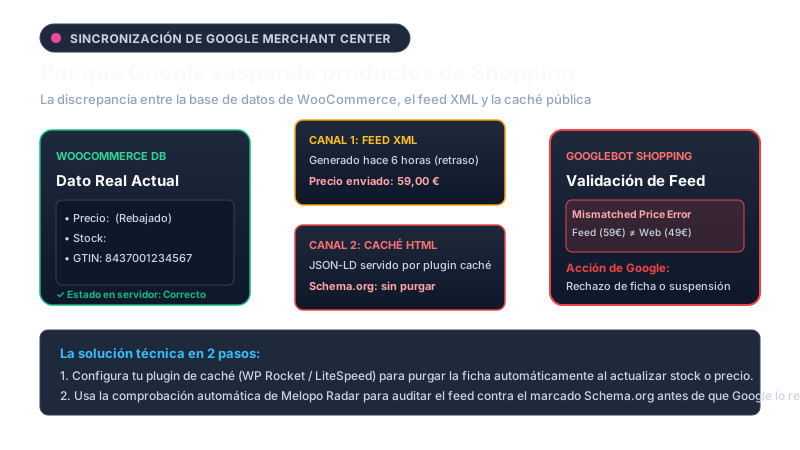
When you change a price in WooCommerce (say, a sale from $59 to $49), two technical failures are common:
- Feed delay: your feed plugin rebuilds the XML once a day or every 12 hours. Until then, the feed still says $59.
- Server cache: if you use WP Rocket, LiteSpeed Cache or Cloudflare, Google’s bot (
AdsBot-GoogleorGooglebot) requests the page and gets HTML cached 24 hours ago, with the old price.
When Google compares them, it spots the mismatch and disapproves the product for breaking its price transparency policies.
The 3 most common violations in WooCommerce and how to fix them
1. Tax mismatch (prices with or without tax)
In the EU and the UK, consumer law requires prices shown to consumers (B2C) to include VAT. If WooCommerce > Settings > Tax says “Prices entered exclusive of tax” but your feed sends the net price without adding tax, Google disapproves the products because the checkout price is higher than the advertised one. (In the US, by contrast, Google expects prices without sales tax.)
Fix:
- Make sure your feed plugin sends prices the way Google expects for each country, and configure tax in Merchant Center where required.
2. Incomplete or conflicting Schema.org data
WooCommerce outputs basic JSON-LD structured data. But if you also have an SEO plugin (Yoast or Rank Math) or a custom theme, you often end up with two Product blocks with contradictory data.
Check whether your product has valid markup with Google’s own Rich Results Test.
A valid JSON-LD block for Google Shopping needs an offers property with the correct price and availability:
<script type="application/ld+json">
{
  "@context": "https://schema.org/",
  "@type": "Product",
  "name": "Trail Running Shoes Pro",
  "image": "https://mystore.com/wp-content/uploads/shoe.jpg",
  "description": "High-performance shoes for technical terrain.",
  "sku": "TRAIL-PRO-42",
  "gtin13": "8437001234567",
  "offers": {
    "@type": "Offer",
    "url": "https://mystore.com/product/trail-shoes-pro/",
    "priceCurrency": "USD",
    "price": "49.00",
    "priceValidUntil": "2026-12-31",
    "availability": "https://schema.org/InStock",
    "itemCondition": "https://schema.org/NewCondition"
  }
}
</script>
3. Invalid GTIN/EAN codes or a wrong check digit
Google requires Global Trade Item Numbers (GTIN/EAN/UPC) for most branded products. One of the most common mistakes is making up numbers or mistyping the last digit, known as the check digit.
The check digit of a standard GS1 GTIN-13 works like this:
- Multiply the digits in odd positions by 1 and those in even positions by 3 (leaving out the last one).
- Add up all the results.
- The check digit is what’s needed to reach the next multiple of 10.
If the maths doesn’t add up, Google Merchant Center rejects the code before processing it. You can check yours with our free GTIN validator.
Cache settings that prevent price mismatches
To stop your cache from serving old pages to Google’s crawlers, purge the product’s cache automatically every time it changes in WooCommerce.
In functions.php, you can force a purge when stock or price is updated:
add_action('woocommerce_update_product', 'radar_purge_product_cache', 10, 1);
function radar_purge_product_cache($product_id) {
    // Purge WP Rocket's cache if it's installed
    if (function_exists('rocket_clean_post')) {
        rocket_clean_post($product_id);
    }
    // Purge LiteSpeed's cache if it's installed
    if (defined('LSCWP_V')) {
        do_action('litespeed_purge_post', $product_id);
    }
}
How Melopo Radar detects it
Instead of finding out when Google suspends your campaigns, the Google Shopping & Feeds add-on of Melopo Radar audits your catalog ahead of time:
- GMC and GTIN checks: it verifies that every product with a barcode has a valid GS1 check digit.
- Variations without a price: it finds size and colour combinations with no price in the database, which cause crawl errors.
- Live comparison: it compares your database with the public HTML to warn you about stale caches before Google’s bot sees them.
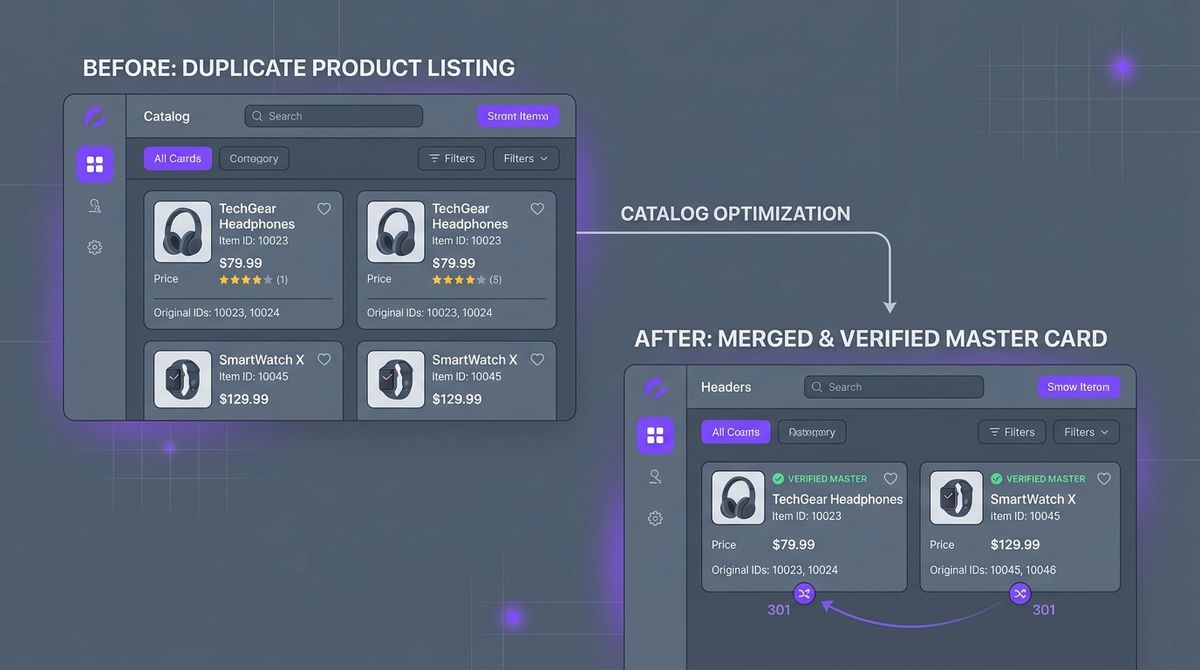
To keep improving your catalog, read our article on consolidating duplicate products with 301 redirects and the guide to silent payment failures with Stripe and Redsys.